> ## Documentation Index
> Fetch the complete documentation index at: https://botpress-ak-docs-20-document-updating-variables-from-outsid.mintlify.site/llms.txt
> Use this file to discover all available pages before exploring further.
# Inspect behaviour
You can inspect your agent's behaviour in the ** Inspect** section of your agent's menu. Here's a breakdown of each sub-section:
## Logs
You can view logs from all your agent's conversations in the **Logs** sub-section. This includes system logs that provide updates on your agent's status, as well as logs from any integrations you have installed:
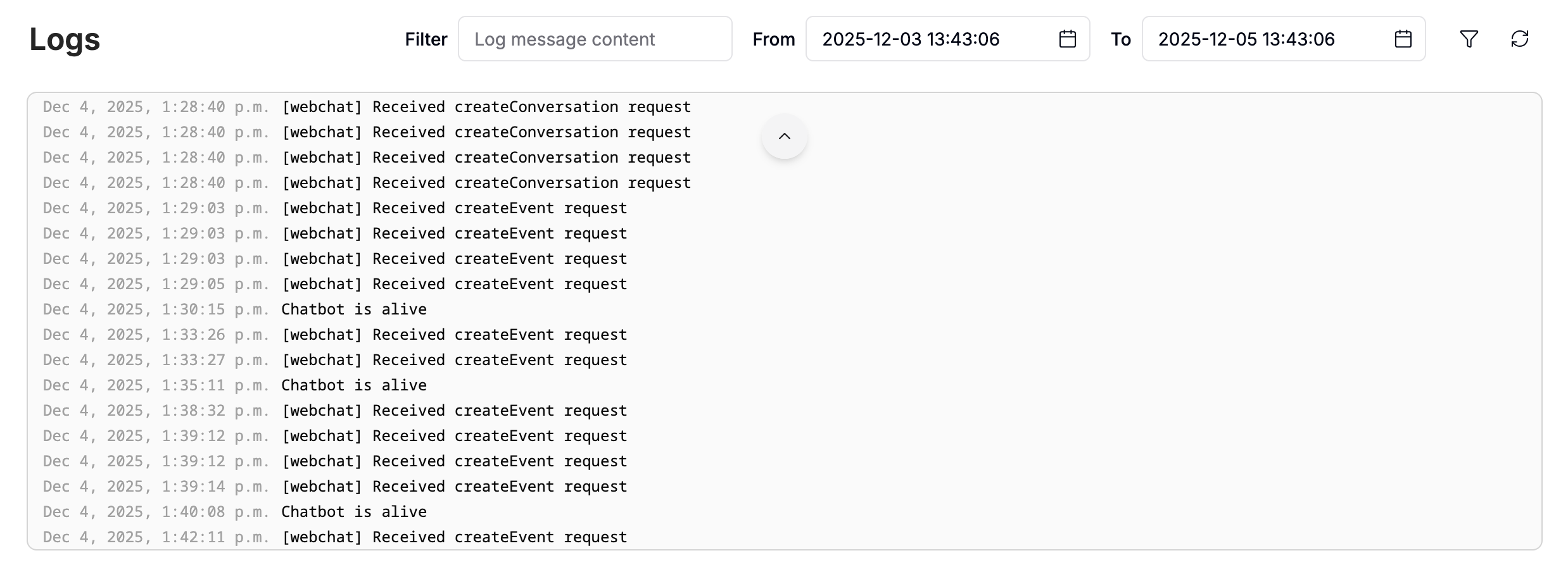
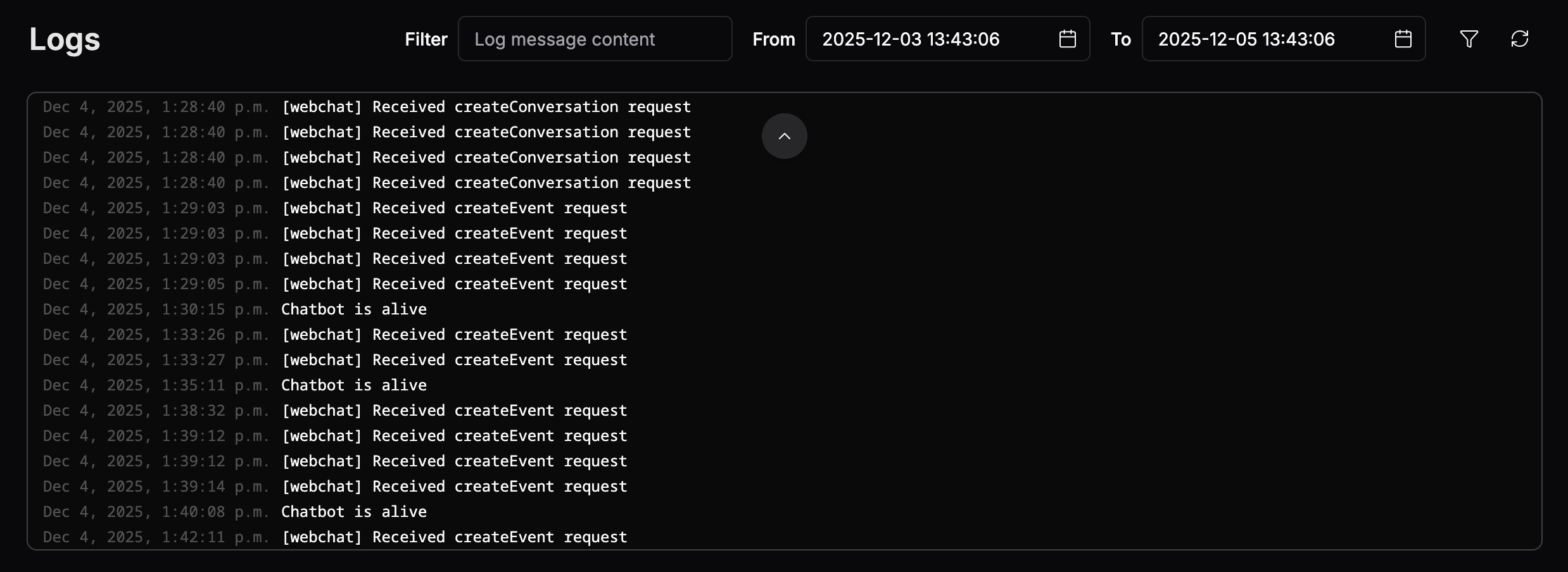 You can filter logs by date and time to narrow down your search for a specific event or conversation.
### Custom logs
You can add custom logs when [writing code in Studio](/studio/guides/advanced/use-code)—just use JavaScript's `console.log`:
```js theme={null}
console.log('An error occured.')
```
Once you’ve published your changes, your bot will print that statement to its logs every time the code executes.
***
## Events
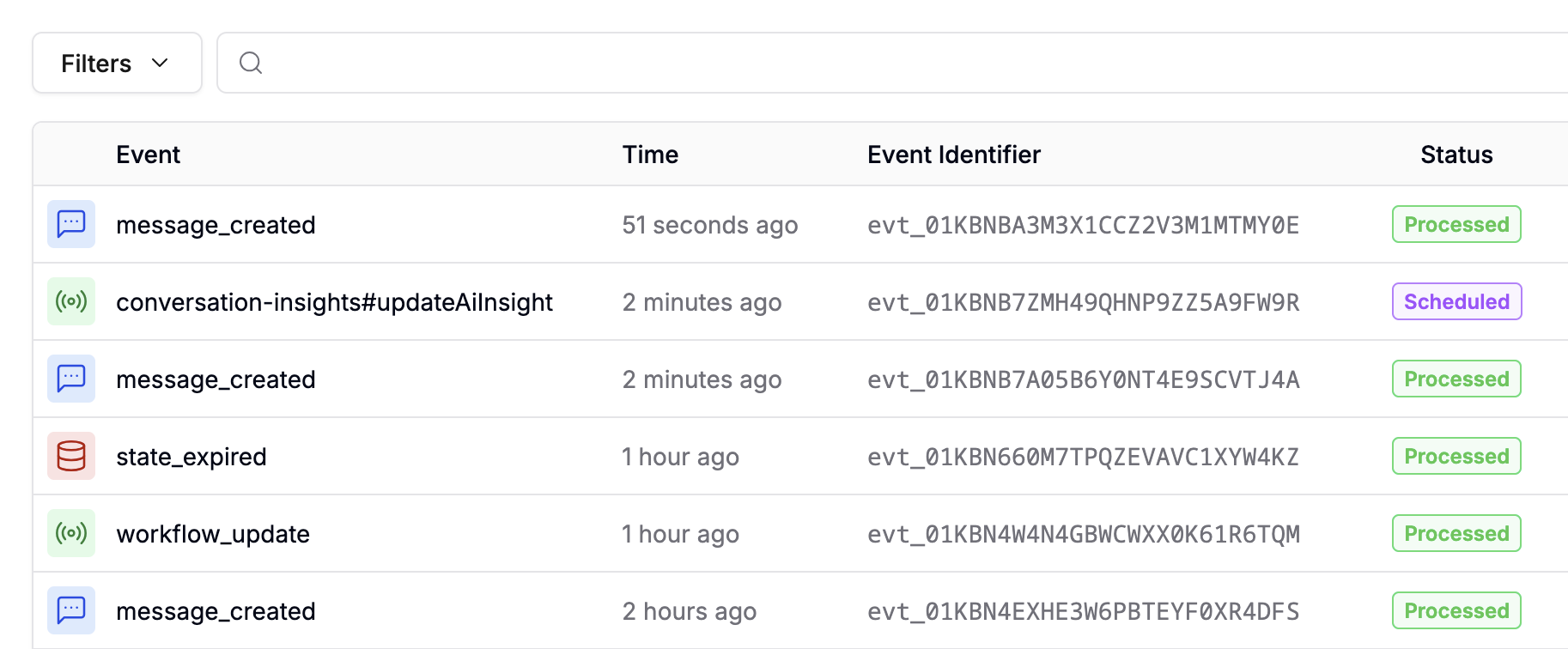
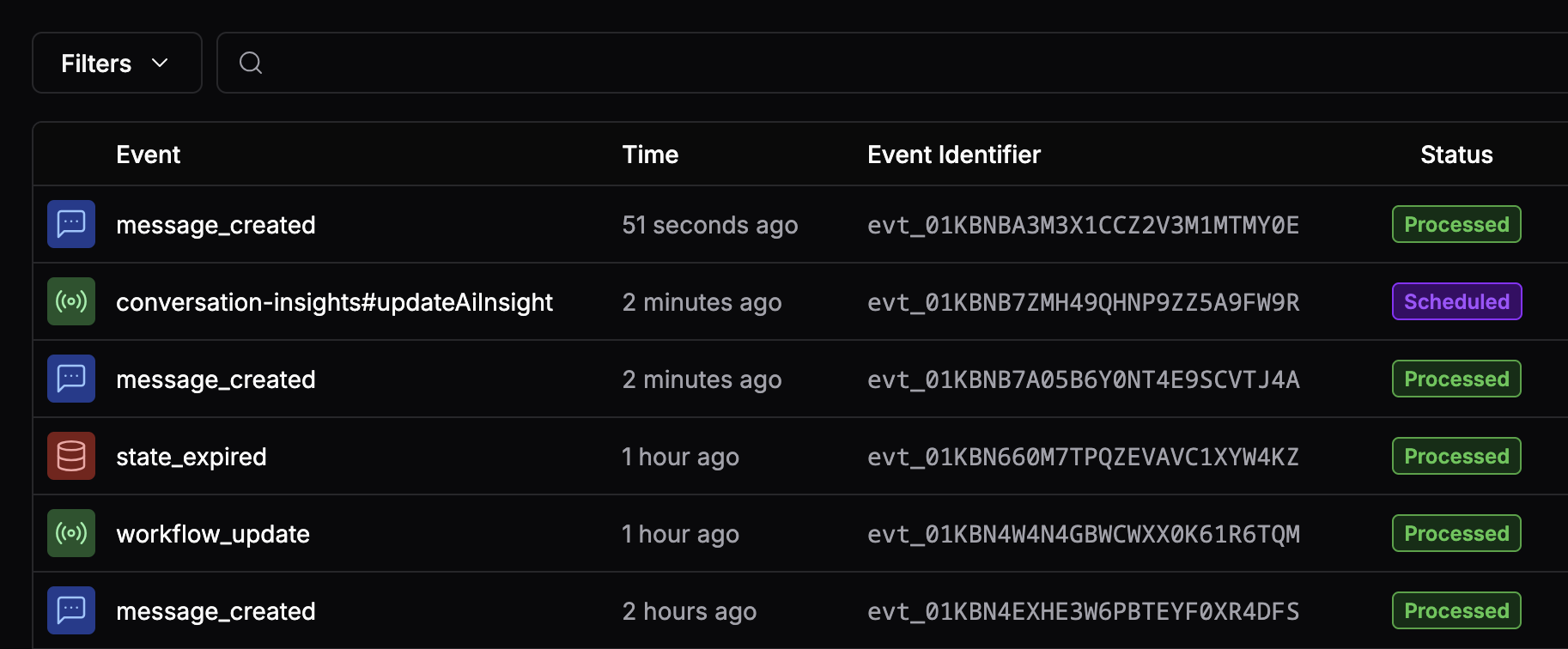
Events represent anything that happens within the bot, such as messages from users, bot replies, and system-level occurrences. You can view all incoming events processed by your agent in the **Events** section:
You can filter logs by date and time to narrow down your search for a specific event or conversation.
### Custom logs
You can add custom logs when [writing code in Studio](/studio/guides/advanced/use-code)—just use JavaScript's `console.log`:
```js theme={null}
console.log('An error occured.')
```
Once you’ve published your changes, your bot will print that statement to its logs every time the code executes.
***
## Events
Events represent anything that happens within the bot, such as messages from users, bot replies, and system-level occurrences. You can view all incoming events processed by your agent in the **Events** section:
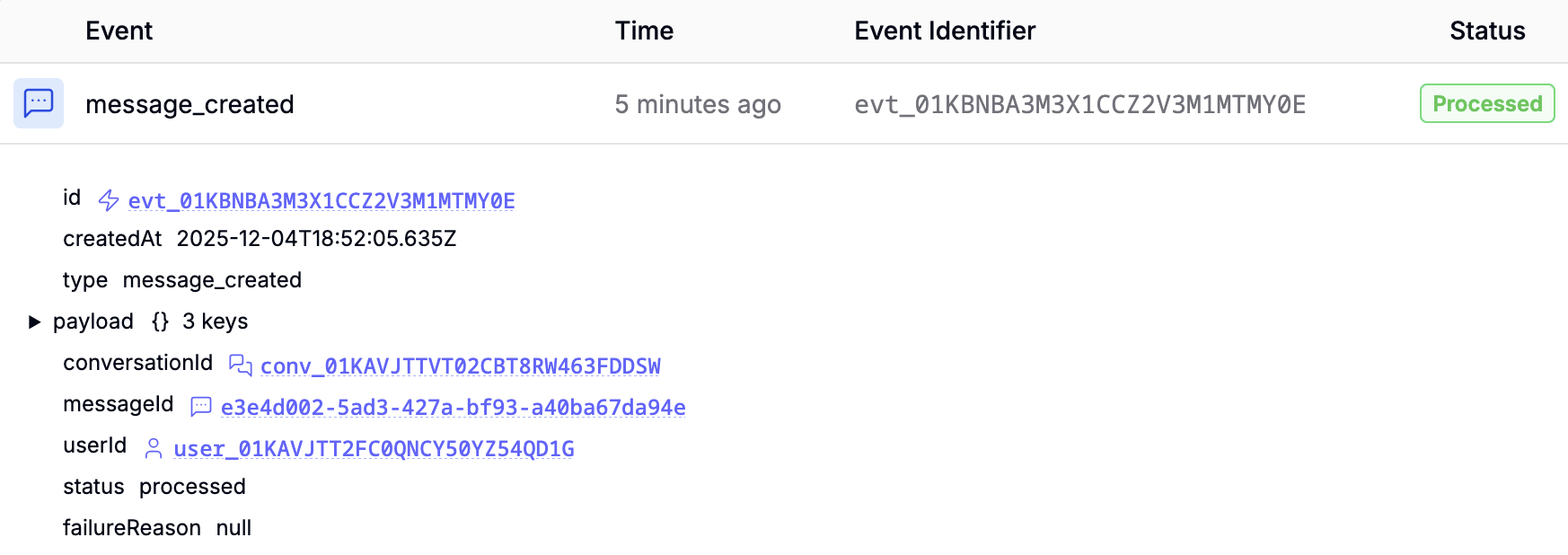
 ### Event data
Select any event to view a detailed JSON representation of all its associated data:
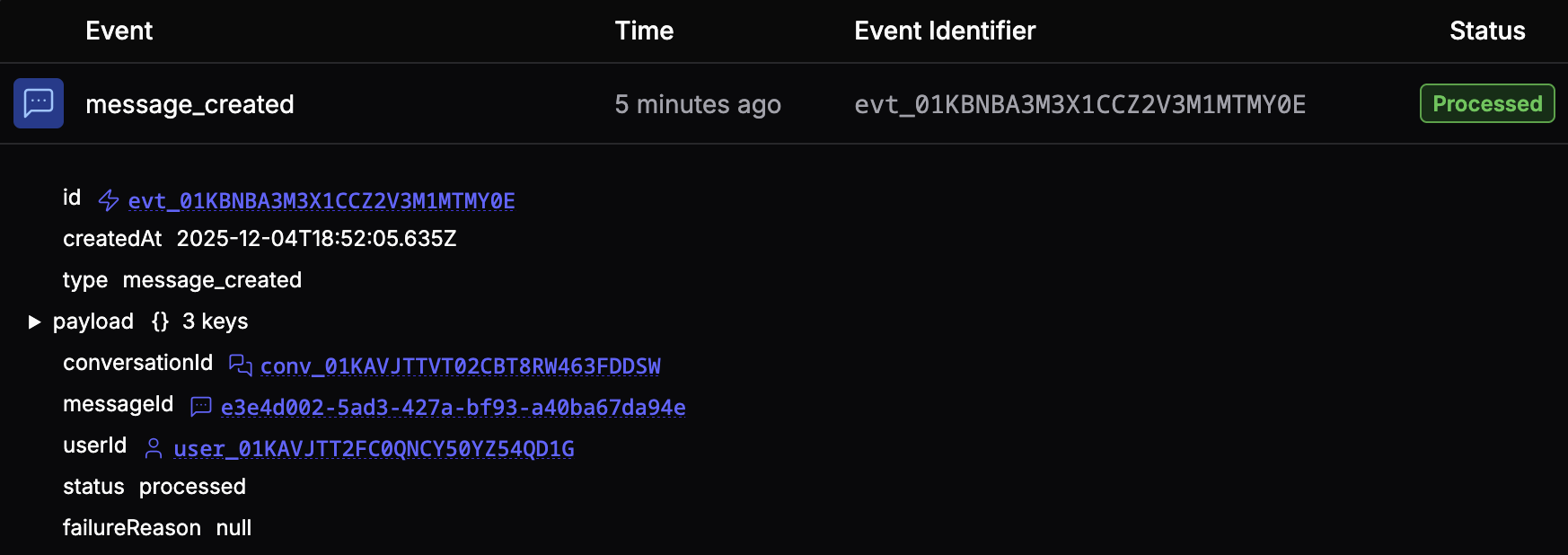
### Event data
Select any event to view a detailed JSON representation of all its associated data:
 ### Quota
Incoming events count towards your plan's Incoming Messages & Events quota. If you need to increase this quota, go to the [Billing](/get-started/configure-your-workspace/#billing) section.
***
## Files
You can view all files uploaded to your agent in the **Files** section. This includes:
* [Files uploaded by users](/webchat/get-started/configure-your-webchat#features)
* Files indexed as part of a [Knowledge Base](/get-started/manage-your-agent/knowledge#knowledge-bases)
* System files
* Files you've uploaded yourself using the [Files API](/api-reference/files-api/getting-started)
### Inspect file data
Select any file to view a detailed JSON representation of all its associated data:
### Quota
Incoming events count towards your plan's Incoming Messages & Events quota. If you need to increase this quota, go to the [Billing](/get-started/configure-your-workspace/#billing) section.
***
## Files
You can view all files uploaded to your agent in the **Files** section. This includes:
* [Files uploaded by users](/webchat/get-started/configure-your-webchat#features)
* Files indexed as part of a [Knowledge Base](/get-started/manage-your-agent/knowledge#knowledge-bases)
* System files
* Files you've uploaded yourself using the [Files API](/api-reference/files-api/getting-started)
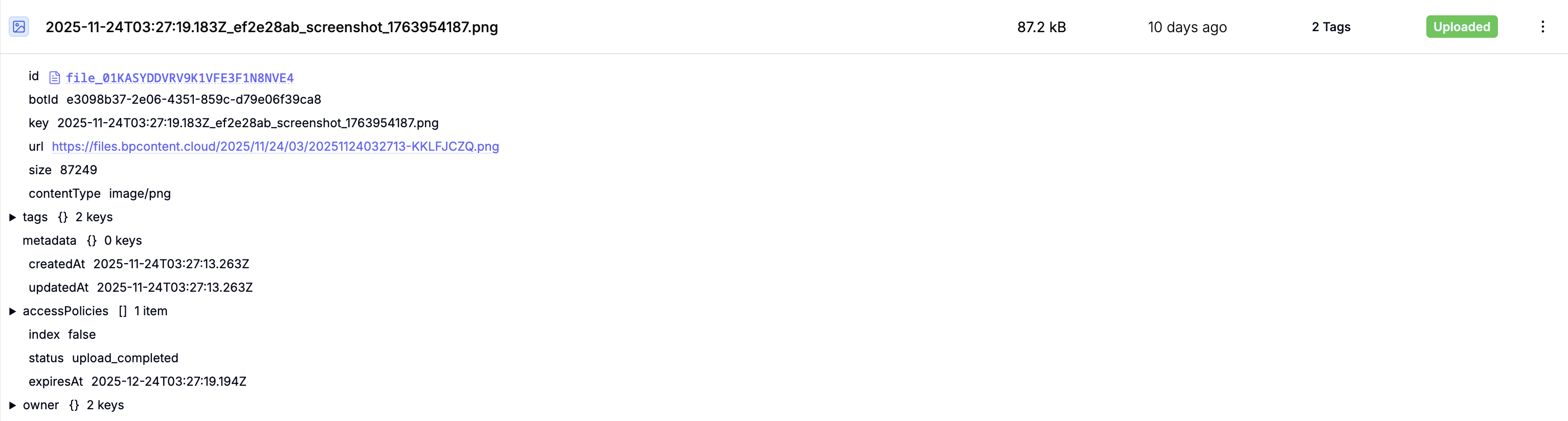
### Inspect file data
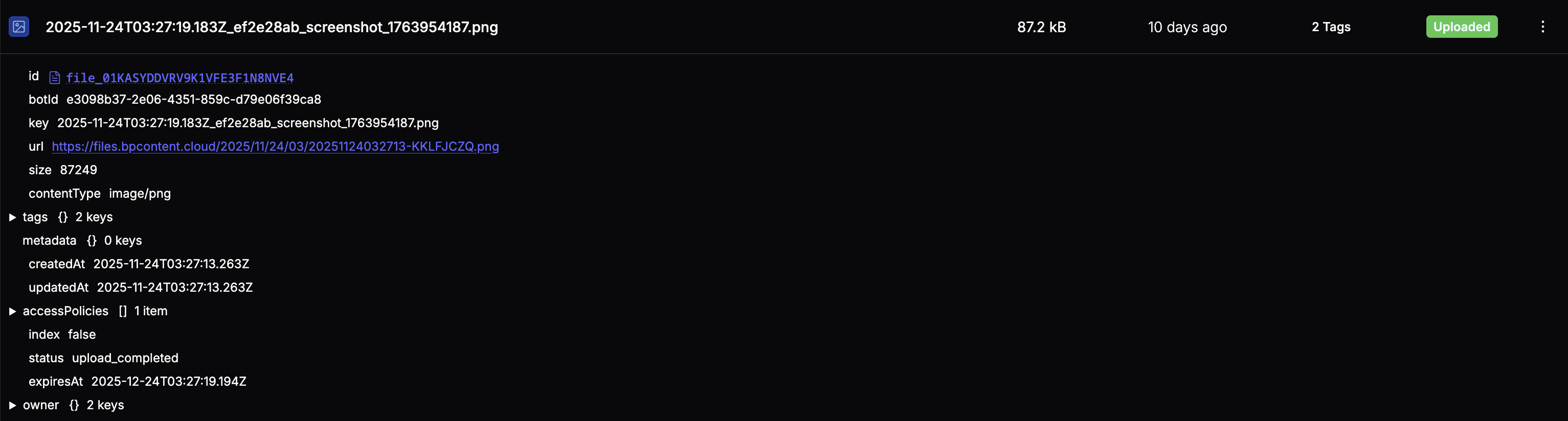
Select any file to view a detailed JSON representation of all its associated data:
 ### View a file
To view a file, select it and open its URL.
### Download a file
To download a file, select to open additional options, then **Download**.
### Delete a file
To delete a file, select to open additional options, then **Delete**.
### Quota
Any files you store count against your File Storage quota. You can increase your quota in your dashboard's [Billing](/get-started/configure-your-workspace#billing) menu.
***
## Issues
You can view any problems or errors your agent encountered in the **Issues** sub-section:
### View a file
To view a file, select it and open its URL.
### Download a file
To download a file, select to open additional options, then **Download**.
### Delete a file
To delete a file, select to open additional options, then **Delete**.
### Quota
Any files you store count against your File Storage quota. You can increase your quota in your dashboard's [Billing](/get-started/configure-your-workspace#billing) menu.
***
## Issues
You can view any problems or errors your agent encountered in the **Issues** sub-section:
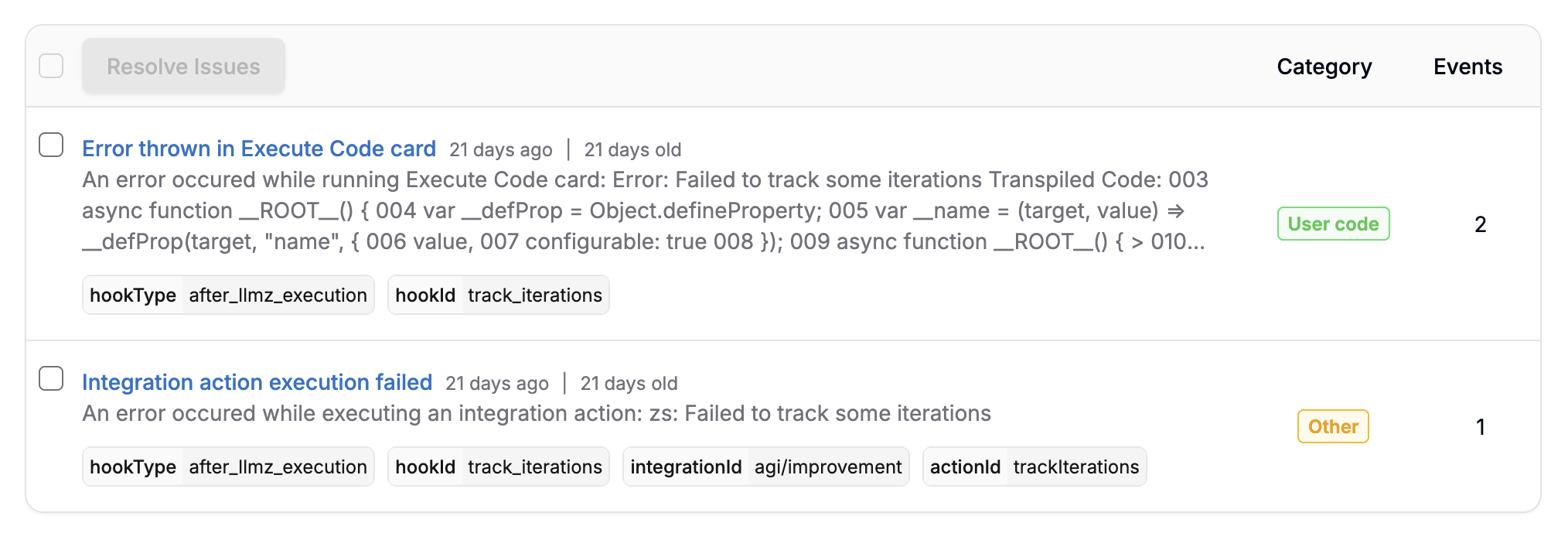
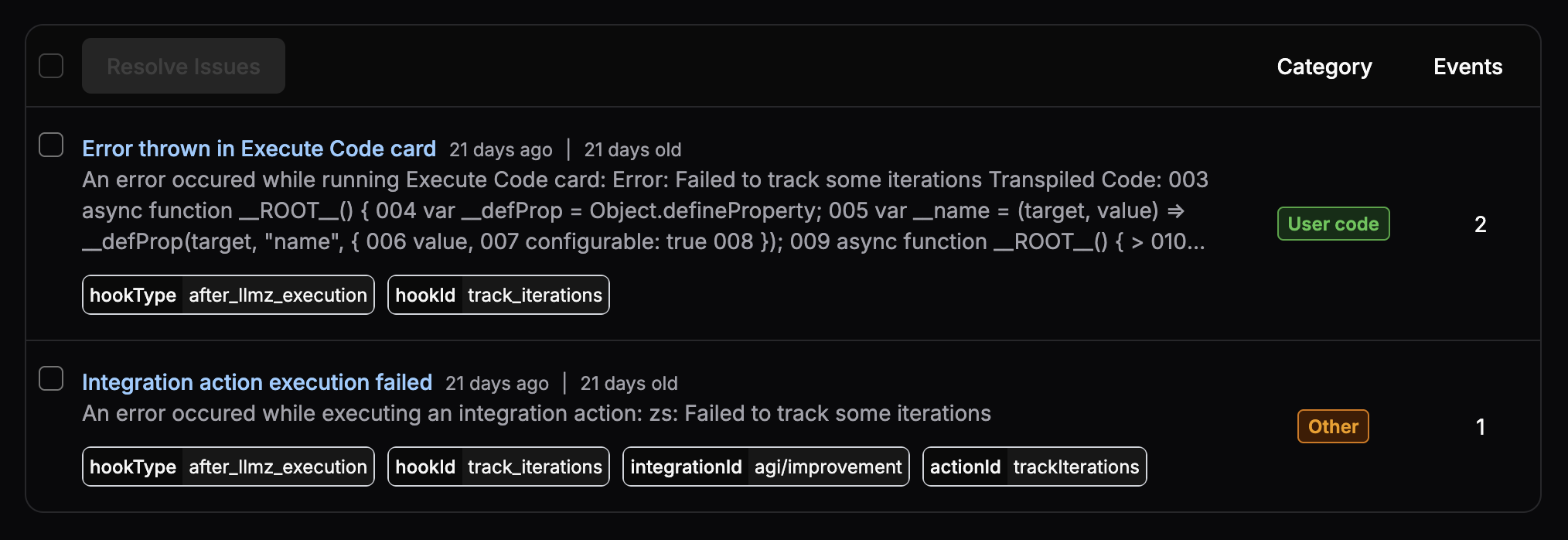 The **Category** field tells you where the issue came from, while the **Events** field tells you how many times it occurred. Select any issue to view a list of all occurrences:
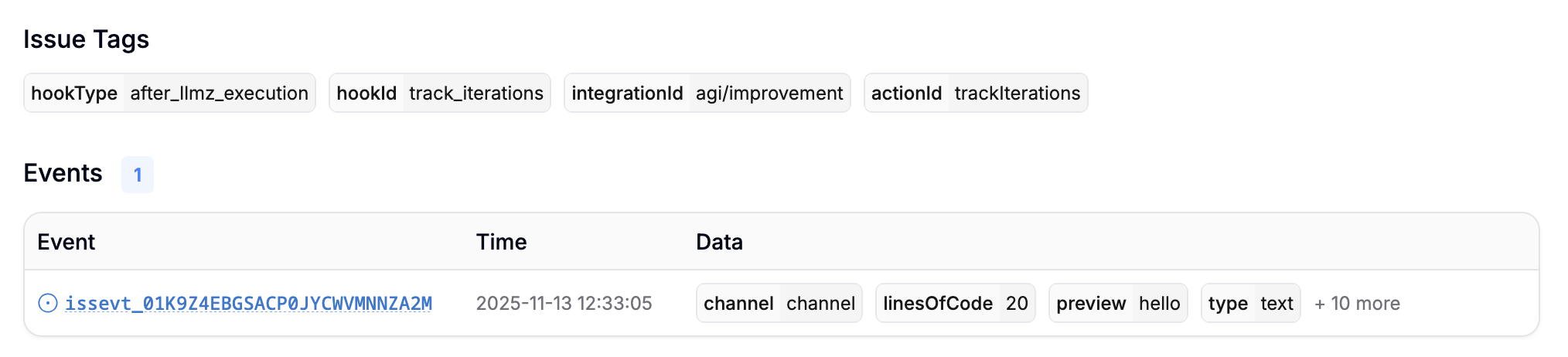
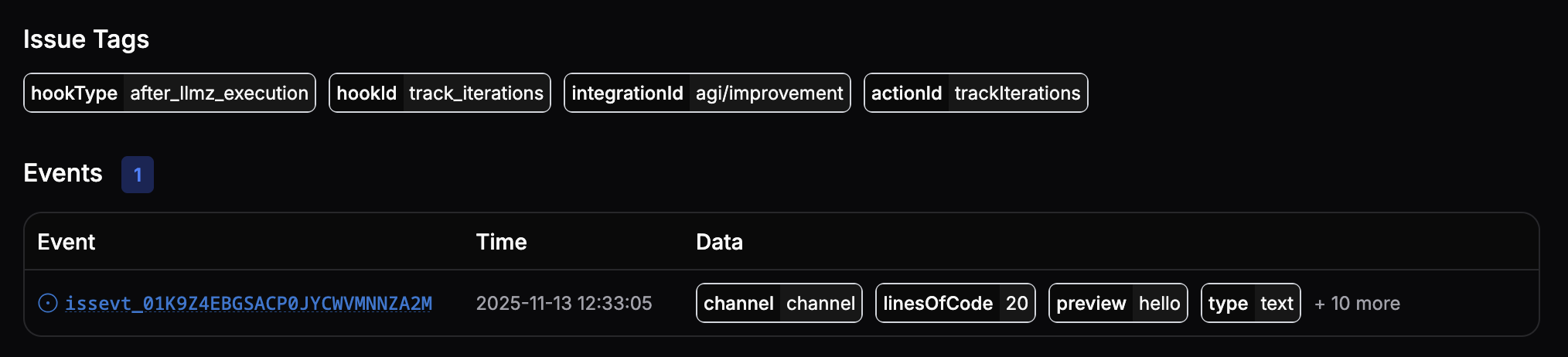 This gives you detailed information about each occurrence, like:
* Its payload
* The associated user and conversation IDs
* The channel or integration on which it occurred
This gives you detailed information about each occurrence, like:
* Its payload
* The associated user and conversation IDs
* The channel or integration on which it occurred